
App Overview
We've explored the requirements. Now let's see them in action.
Let's explore the finished app.
Create a Task
Creating a new task is a core feature of a task app.
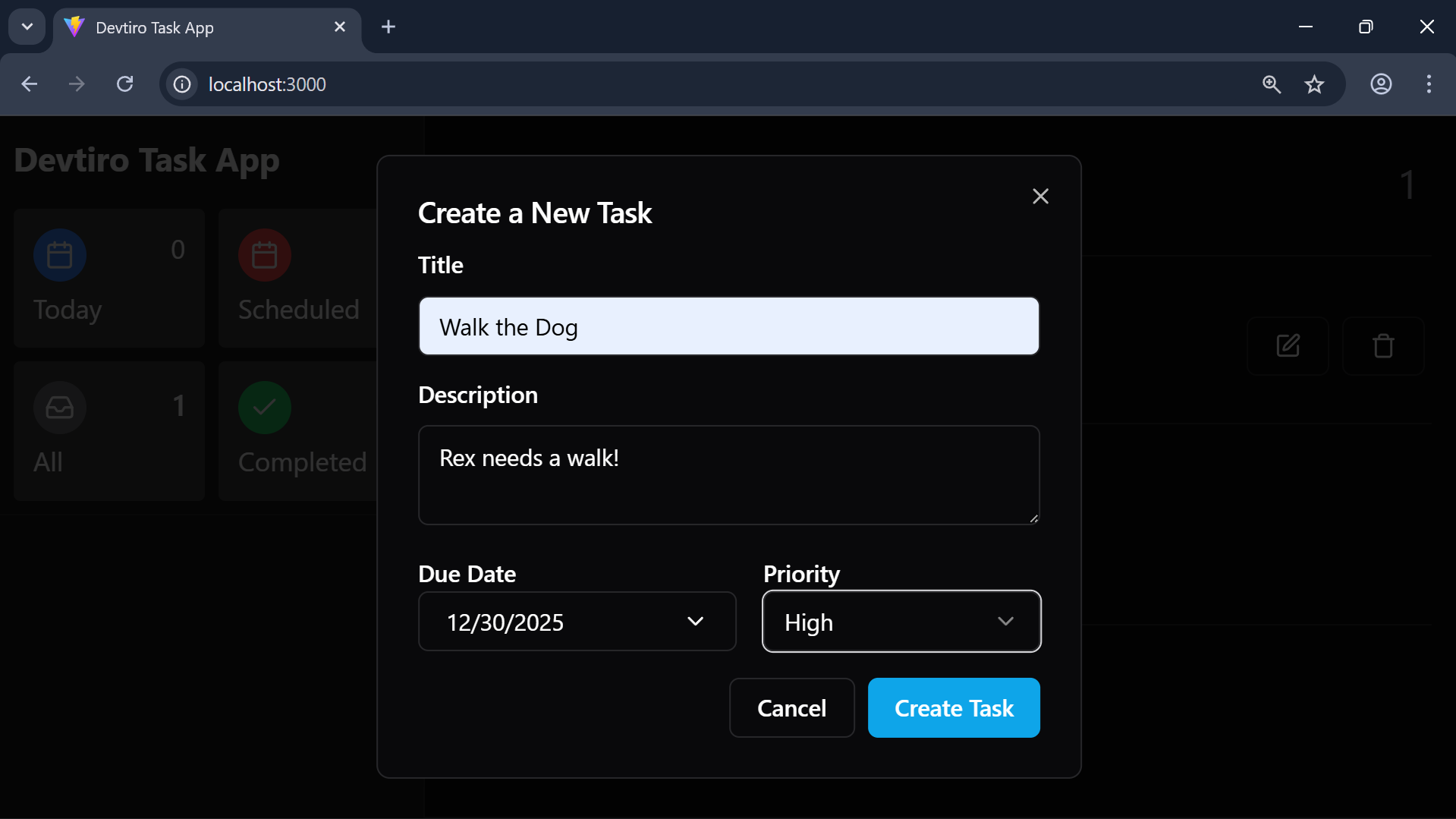
To create a new task, we:
- Click the "Create Task" button in the bottom-left of the page. This brings up a dialog with a form to create a new task.
- Enter a title, optional description, optional due date, and select a priority. Click the "Create Task" button to create the task.
- You'll see a new task in the task list.
Update a Task
Updating a task is the second feature of our app. Here's how you do it:
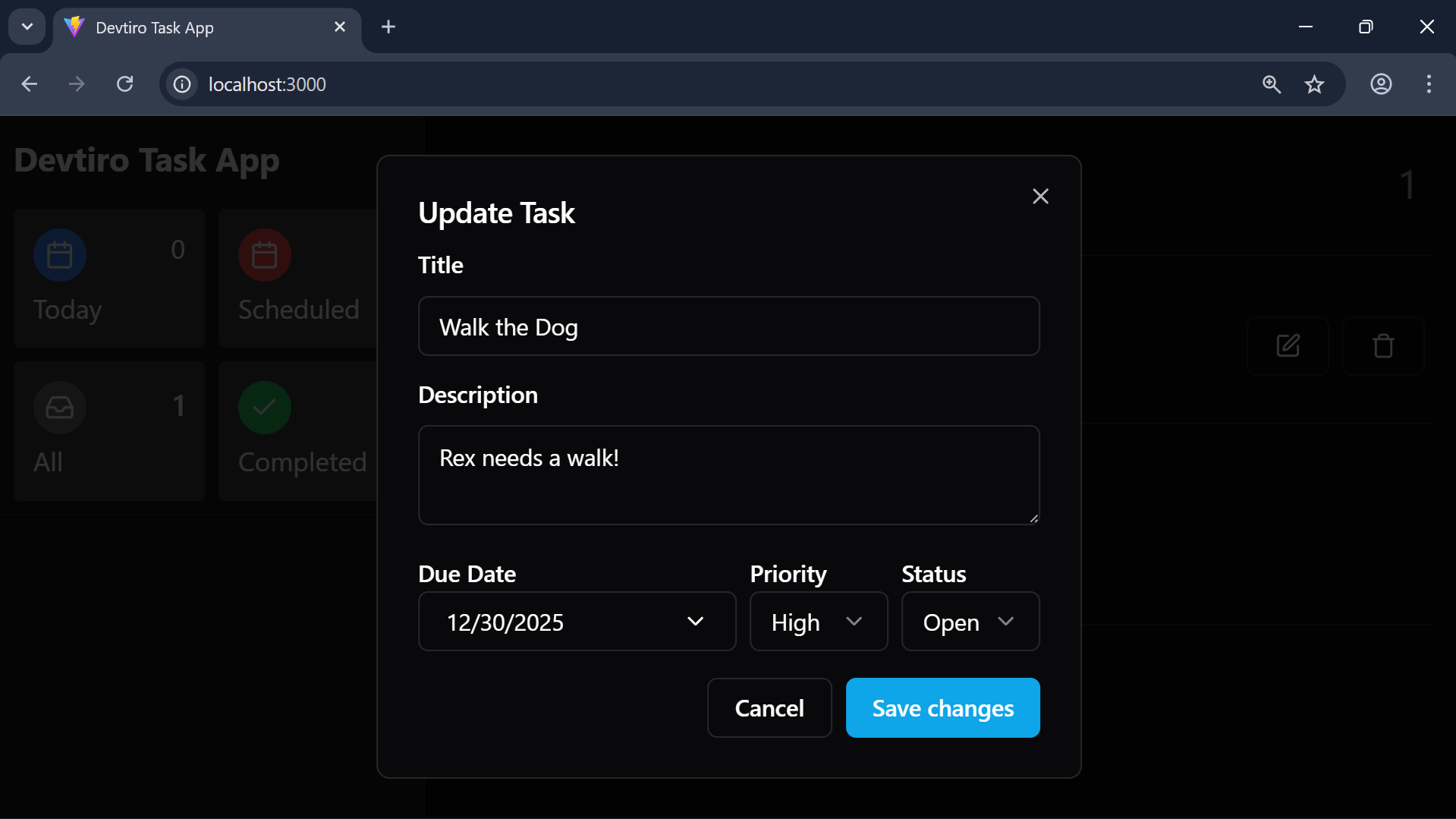
- Click the edit button on the task you wish to edit. This brings up a dialog to edit the existing task.
- You'll see all the task's existing details. Edit each field. Click the "Save Changes" button.
- You'll see the updated task in the task list.
Complete a Task
This is the end goal of every task. Let's see how to complete a task:
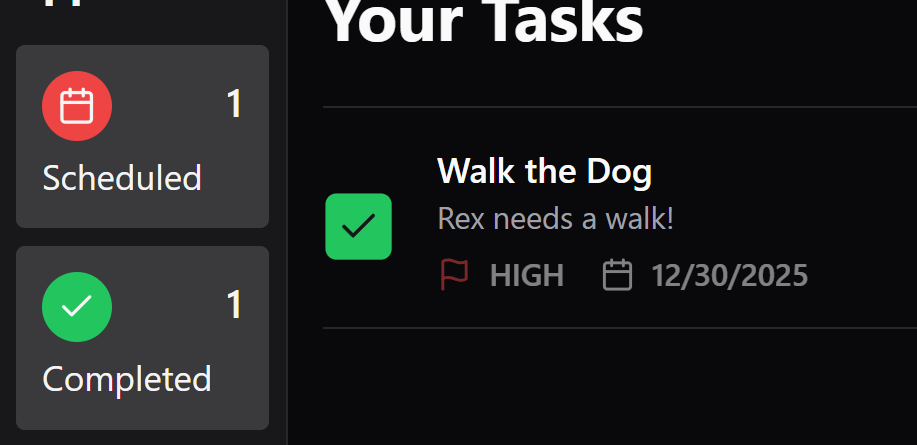
- Click the checkbox next to the task you wish to complete.
- The checkbox becomes ticked. Click again to re-open the task.
Note
You can also update the task's status in the edit task dialog.
Delete a Task
Eventually you'll need to delete a task. Let's see how it's done:
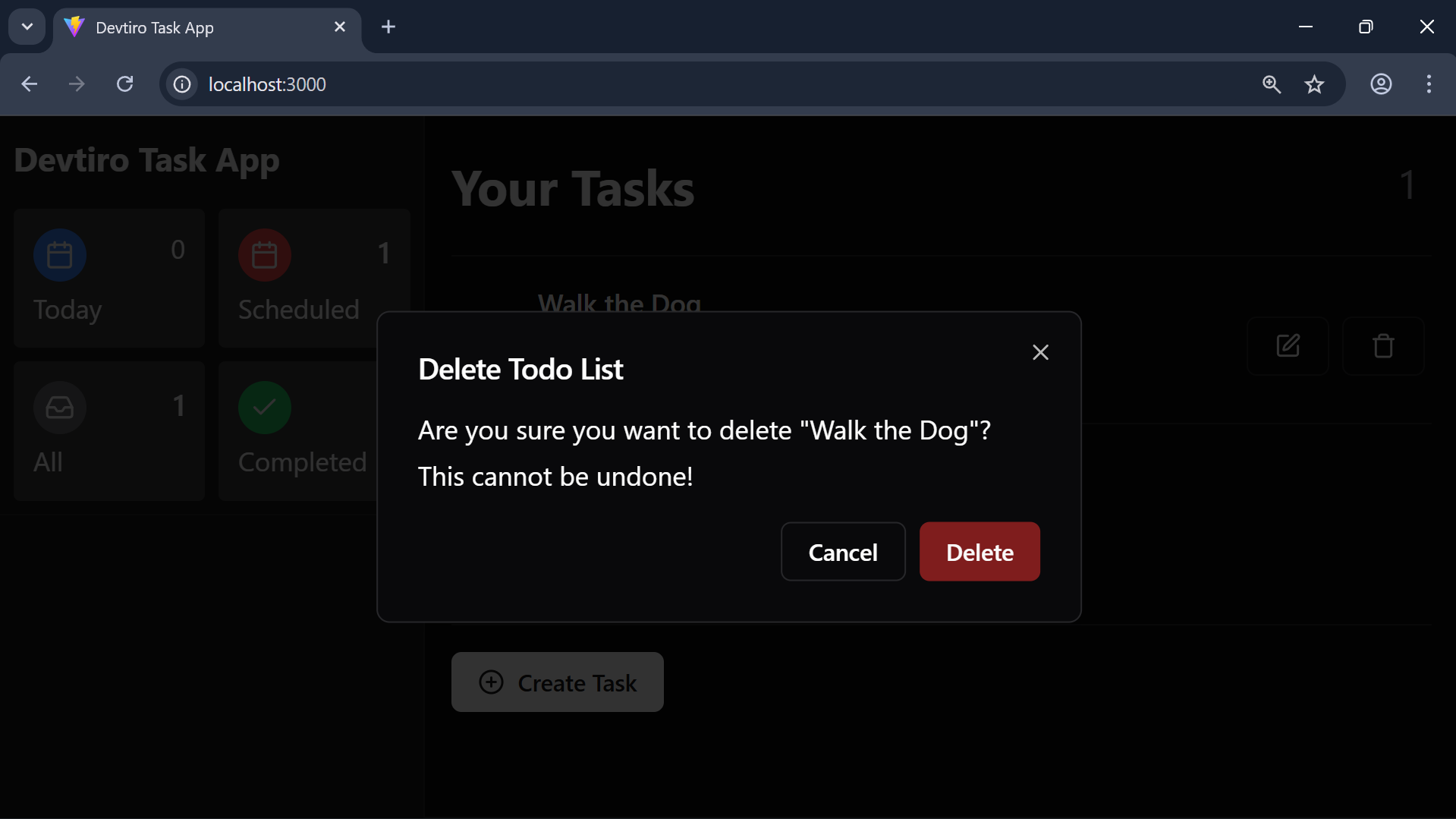
- Click the delete button next to the task you wish to delete. This brings up the task delete dialog.
- Click the "Delete" button to delete the task.
Now that we understand how the app works, let's see how we'll build it.
Summary
- Explored each feature we're to implement.